
This guide walks you through how to generate a product feed on your Shopify store to enable publishers on the Good On You affiliate network to better promote your products on their platforms. It will take just 15 minutes to setup the feed once and then it will dynamically update daily to keep the product data fresh for affiliate publishers. It is completely cost free.
Install the app “SyncWith” on your Shopify store.
Install this app on your Shopify store.
*NB. Do not install “SyncWith Google Sheets, Looker”
Configure your product feed
Open the SyncWith app
Scroll down and open the “All products” report template
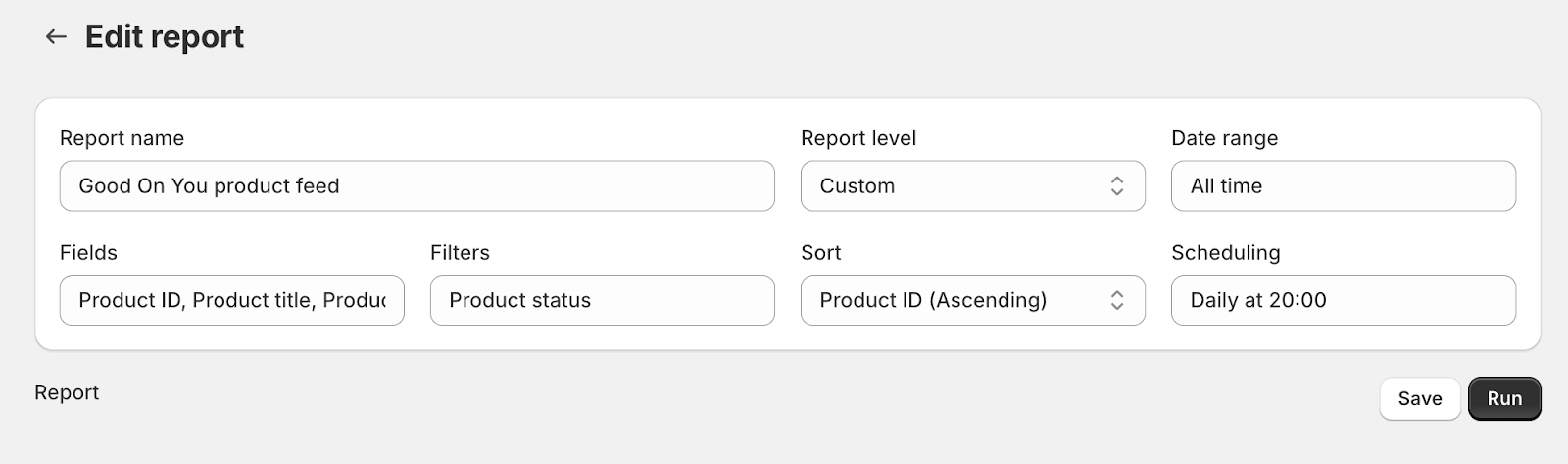
Change the report parameters as per below:
Report name: “Good On You product feed”
Date range: All time
Fields (in this order): Product ID, Product title, Product variant SKU, Product URL, Product variant price, Product description, Product image URL, Vendor.
Filters: Select “Product status” In “Active”
Sort: Product ID (Ascending)
Scheduling: Daily. Select a time that would usually be after you have made any product edits on your store during the day for example 8pm.
Save and run - scan through the products and check that everything looks OK. If there are products that you do not want affiliate publishers to promote, then you can add additional filters to remove them from the feed.
Share your product feed
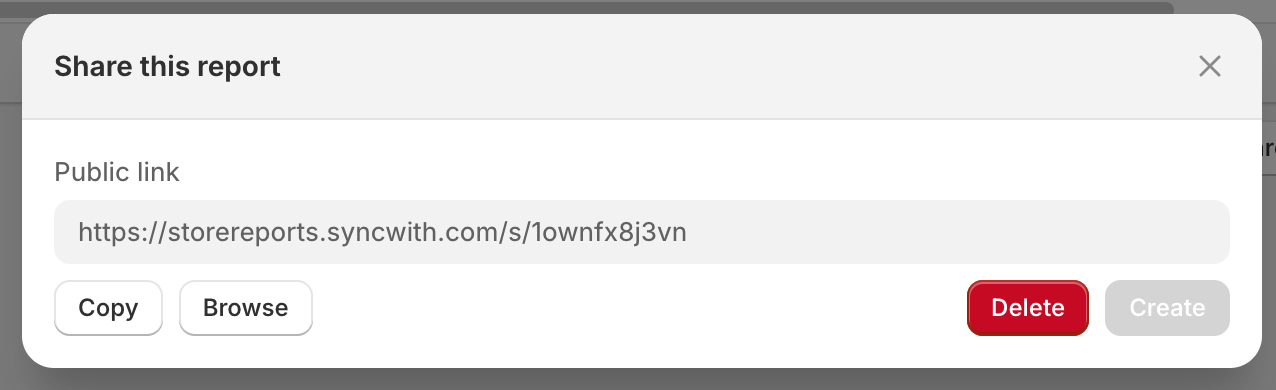
Click “Share” at the bottom of your feed.
Create a public link
Provide the public link URL to your Good On You account manager